
Anyone who sideloads with a free Apple ID hits the same wall sooner or later. Apple lets you run three sideloaded apps at once and register ten new app IDs a week, and if you use SideStore, SideStore itself eats one of those three. Install an emulator and a second app and you’re full.
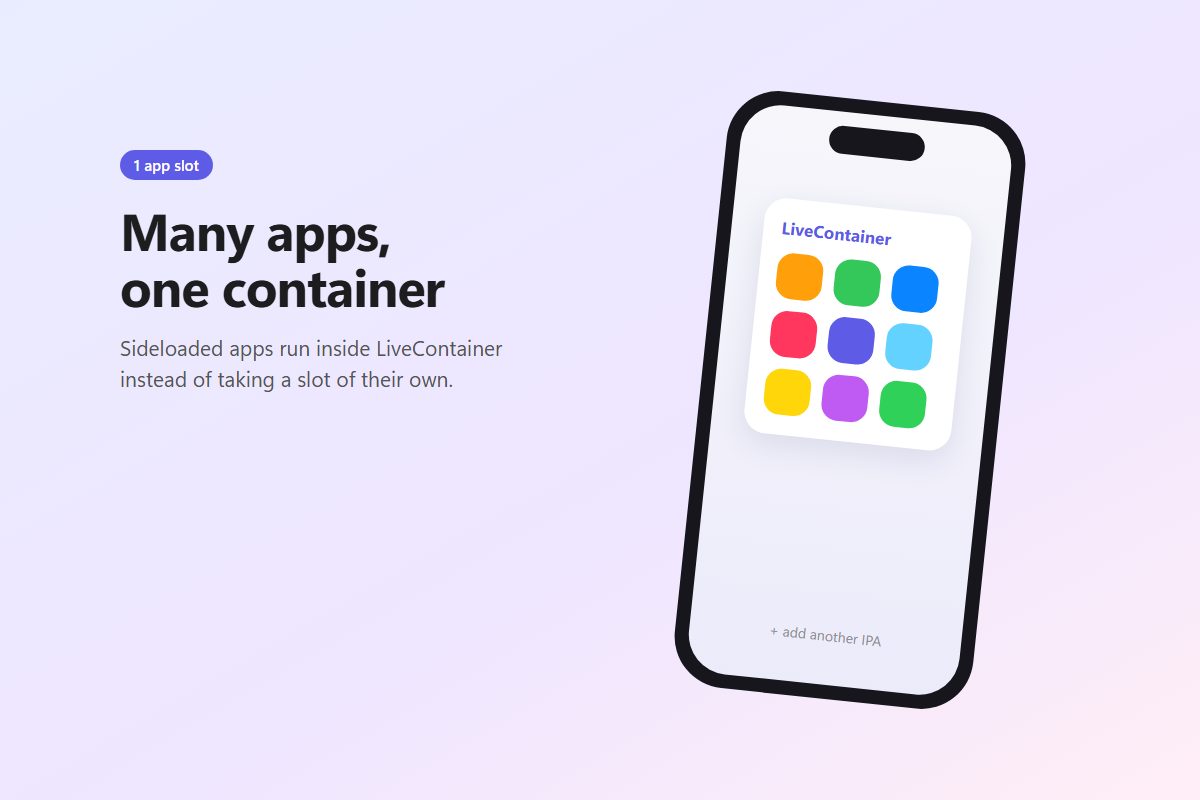
LiveContainer gets around that in a clever way. It’s one app that runs other apps inside itself, so iOS only ever sees LiveContainer. Ten emulators, five tweaked clients, two copies of the same app with different logins: as far as Apple’s limits are concerned, that’s all one slot.
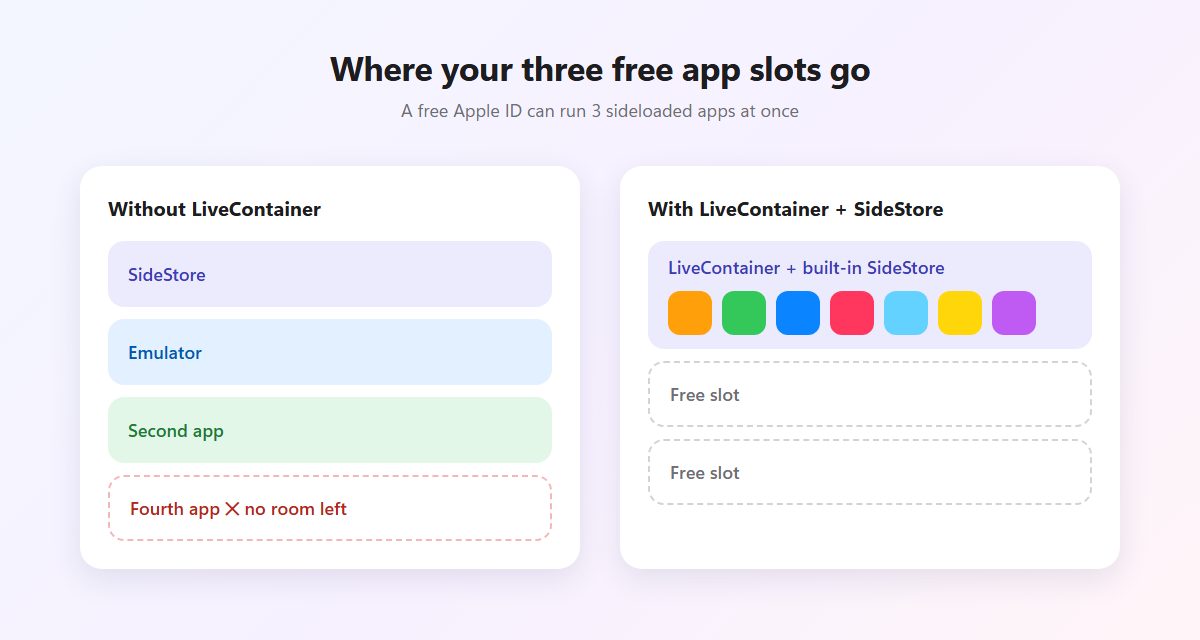
Without LiveContainer, every sideloaded app needs its own slot. With the bundled SideStore build, everything fits in one.
The trick behind it
The developers are careful to call it an app launcher rather than an emulator. When you add an IPA, LiveContainer keeps it in its own folder. Tap it to launch, and LiveContainer loads that app’s code into its own process and hands over control, so the guest app starts up as it normally would. Because nothing gets installed as a separate app, the three-app and ten-ID limits never come into play.
That also means you can keep several versions of one app side by side, each with its own data container. Handy if you want to test an update without losing your old setup, or keep a work and personal login apart.
It’s open source and busy: the repo was still getting commits in mid-October 2026. If sideloading is new to you, read the overview of no-jailbreak methods first and come back.
Pick the right download
The download button above opens LiveContainer’s GitHub releases, where each version comes as two IPAs. Choosing well saves you a slot.
LiveContainer+SideStore is the one most people should get. It bundles SideStore inside LiveContainer, so the pair together uses a single free slot and leaves you two spare. You install it from a computer or through an existing SideStore.
LiveContainer on its own is for people who already run standalone SideStore 0.6.2+ or AltStore 2.2.1+ and want to keep it that way. It costs you one slot on top of the one your store app already uses.
Version 3.8.0 brought a storage manager that breaks down how much space each app and its data use, a Share Sheet extension so you can send a link or file straight to an app inside LiveContainer, and per-app multitasking preferences. A nightly build also exists, but stable is the safer bet.
Stick to that GitHub page. The developers have flagged closed-source “LiveContainer” builds floating around, and since every app you run lives inside LiveContainer, a modified build could read all of it, keychain items and logins included.
A walkthrough with the bundled SideStore
Before you start, you’ll want a cable, an Apple ID (a spare account is fine), and the free LocalDevVPN app, which SideStore uses to refresh apps. Multitasking needs iOS 16 or later.
One thing not to do: install LiveContainer with Sideloadly, i4 or 3u Tools, NB Tool or most online signers. The project doesn’t support them, and they tend to produce an install that fails its signing checks later.
From the computer
The developers recommend Impactor. Install the LiveContainer+SideStore IPA with it as you would any app, with one LiveContainer-specific setting: make sure Only Register Main Bundle is selected before you click Install.
iloader works too and is even simpler, since it has a LiveContainer + SideStore (Stable) button that fetches the IPA for you. Use the newest version, because older ones sign LiveContainer incorrectly.
Already running standalone SideStore? Install the bundled IPA through it like an upgrade, choosing Keep All Extensions (Use Main Profile) so your data comes along.
On the phone
Trust the profile and turn on Developer Mode as with any sideloaded app. Then comes the step that trips people up. Open LiveContainer and tap the SideStore icon at the top left to open the built-in SideStore. Sign in there, even if it looks like you’re already signed in, because the built-in copy can’t read saved credentials. Connect LocalDevVPN, go to My Apps and tap Refresh All.
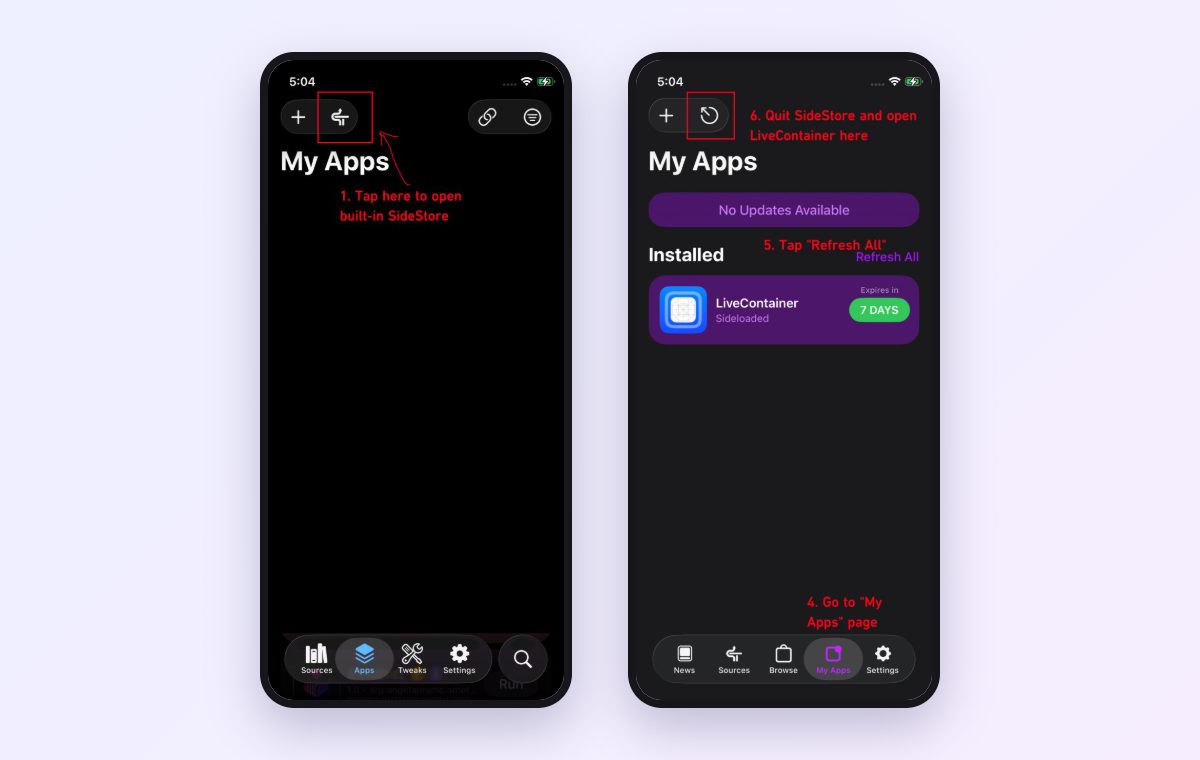
Left: the button that opens the built-in SideStore. Right: Refresh All, then the button that takes you back to LiveContainer. Screenshots from LiveContainer’s documentation.
Back in LiveContainer, open Settings and tap Import Certificate from SideStore. LiveContainer signs every app you add with this certificate, so skipping it means nothing will launch.
Checking that it worked
When the import succeeds, the button changes to Remove Certificate. For proof, open JIT-Less Mode Diagnose in settings and run the test.
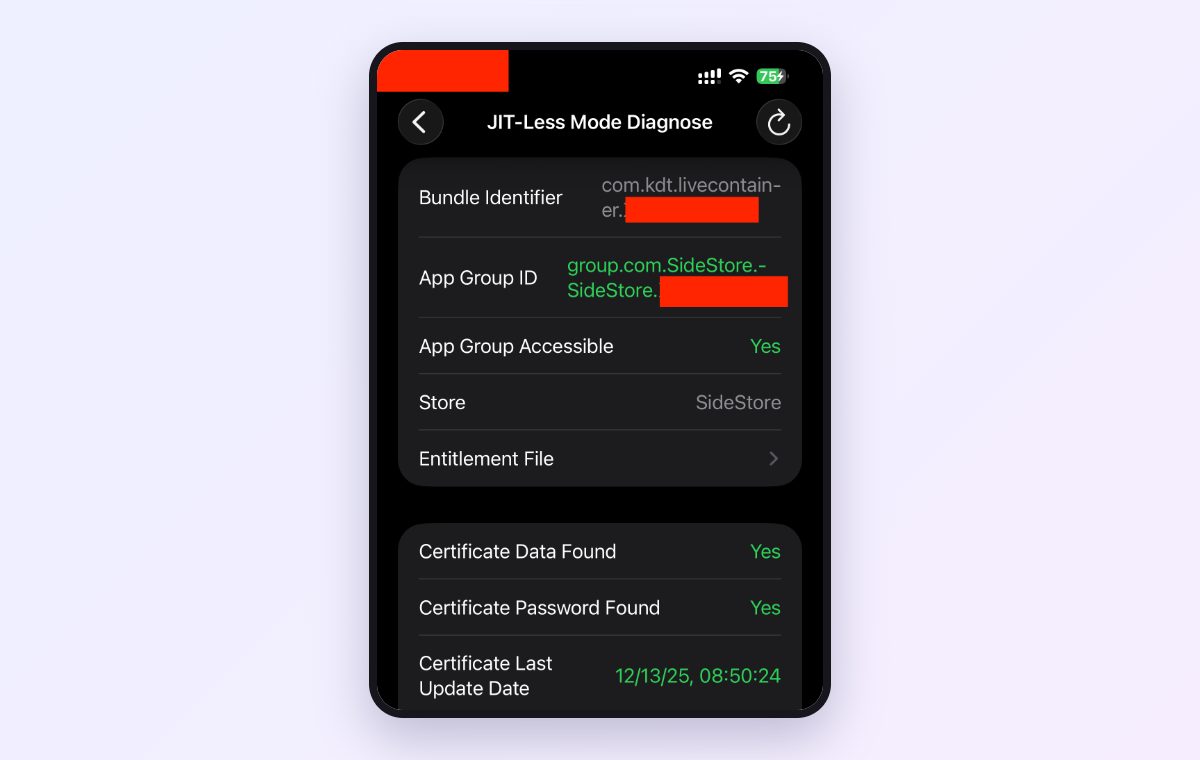
Green values mean the certificate and app group are set up correctly. Screenshot from LiveContainer’s documentation, with personal IDs blanked out.
From here, tap + in the top-right corner to add IPAs from Files, or share an IPA to LiveContainer from the Share Sheet. Tap an app to run it, long-press for its settings, including a shortcut on your Home Screen.
The fine print
LiveContainer is a launcher doing some unusual things, and a few features break as a result. Server push notifications don’t arrive, though local ones can after you switch on Fix Local Notifications for that app. App extensions like widgets and keyboards aren’t supported. Permissions such as camera or location belong to LiveContainer as a whole rather than to each app.
The one that deserves real thought is isolation. Apps inside LiveContainer aren’t sandboxed from each other, so any of them can read another’s data. Keep apps you’d trust with your logins separate from ones you’re just trying out, or use a second LiveContainer for them.
Some apps won’t run at all, and the project tracks known problems under a compatibility label in its GitHub issues. If an app’s file picker acts up, Fix File Picker in its settings usually helps.
Emulators and JIT
Emulators need JIT to run at a usable speed, and LiveContainer can ask for it automatically. Choose a JIT enabler in the JIT section of its settings, then long-press an app and turn on Launch with JIT.
On iOS 26 and later, only StikDebug works as that enabler. Devices with an A15 or M2 chip or newer also need a JIT script for each app, supplied by the app’s developer. Without one, the app won’t get JIT on those devices whatever you set.
If something breaks
“Certificate not found, did you log into built-in SideStore?” Open the built-in SideStore, go to its settings and use Export Signing Certificate. Pick a password, save the file, and import it by hand in LiveContainer’s settings.
“The executable was signed with invalid entitlements.” Your store app is too old for this release. Update to SideStore 0.6.2+ or AltStore 2.2.1+ and reinstall.
Invalid signature errors on launch. Run the diagnose test. If it passes, force a re-sign from that app’s settings.
Everything quit working after a week. The certificate expired because SideStore couldn’t refresh. Keep LocalDevVPN on over Wi-Fi, or tap Refresh All yourself. Apps inside LiveContainer share its certificate, so they all come back together. The SideStore guide has more on refresh trouble.
Old iPhone stuck on iOS 16 or 17.0? TrollStore installs apps permanently instead and may suit you better. Everyone else gets the most out of LiveContainer by pairing it with StikDebug and an emulator like MeloNX.