To install IPA with GBox, you sign and load the app straight from your iPhone, no Mac and no Lightning cable required. This guide covers what GBox is, what to have ready, the exact install steps, and how to deal with the two recurring headaches of on-device signing: certificate revocation and the short signing windows that come with free options.
GBox fits into the broader topic of how to install IPA files on iPhone without a jailbreak. It’s a signer-plus-installer that runs on the device itself, which is the appeal and also where most of the friction shows up.
What GBox is, and who it’s for
GBox is an iOS app that downloads, signs, and installs IPA files directly on an iPhone or iPad. It supports a wide span of releases, roughly iOS 12 through the current versions, so both older and newer hardware are in play. The pitch is that you never touch a computer. You grab the IPA, point GBox at it, pick a certificate, and it sideloads.
That makes it a sensible pick if you don’t own a Mac, or you’d just rather not plug in every few days to re-sign apps the way some desktop tools demand. It suits people who are comfortable poking around in Settings and don’t mind an app that occasionally stops opening until they re-sign it.
One honest caveat before you start: install apps you actually have the right to use, and get your IPA files from legitimate sources. GBox is the delivery mechanism, not a license.
What you’ll need before you start
- An iPhone or iPad on a supported iOS version (iOS 12 and up covers most cases).
- Safari. Configuration profiles can only be installed through Safari on iOS, so use it for the GBox download even if another browser is your default.
- A stable Wi-Fi connection. On-device signing pulls and processes the IPA locally, so a flaky connection during download can leave you with a broken file.
- The IPA you intend to install, saved to your device or to cloud storage like iCloud Drive or Dropbox.
- A signing certificate. GBox ships with shared certificates you can use immediately, or you can supply your own P12. More on the trade-offs below.
How to install IPA with GBox
-
Download GBox in Safari. Open the official GBox source in Safari and tap the install button. iOS will ask to install a configuration profile. Allow it.
-
Trust the profile. Go to Settings > General > VPN & Device Management, tap the GBox profile, and choose Trust. The GBox icon should now appear on your Home Screen.
-
Open GBox and choose a certificate. This step decides how stable your apps will be. Inside GBox, open Certificate Management (sometimes labeled Cert Management). On-device signers like GBox give you two practical routes, and they behave very differently:
- A shared or global certificate that comes bundled with the tool. Easiest to start with, and the most likely to get revoked, since everyone is leaning on the same one. The free shared certs can stop working within days.
- Your own private P12 certificate, bought from a signing service. These are issued from an Apple distribution or enterprise account and stay valid for up to about a year, though the real-world lifespan depends on how quickly Apple flags it.
To import a P12, tap Import Certificate, select your
.p12and.mobileprovisionfiles, enter the certificate password, and confirm.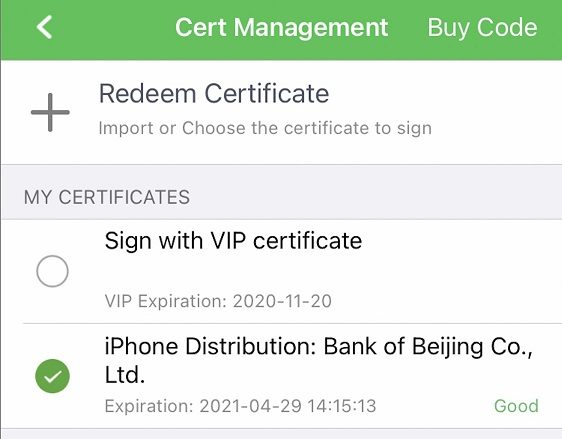
GBox’s certificate manager — the certificate you pick decides how long your apps keep working.
-
Import the IPA. From the main screen, tap Import IPA, then browse to the file in your device storage, the Files app, or your cloud account.
-
Sign and install. Pick the certificate you want to sign with, then tap Install. GBox signs the IPA on the spot and pushes it to your Home Screen. Let the progress bar finish before tapping the new icon.
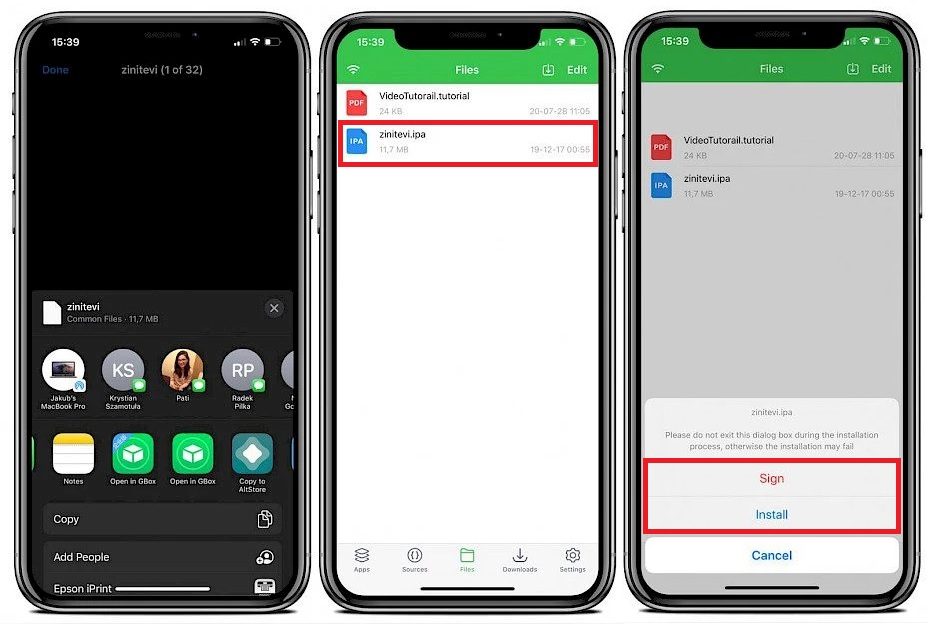
GBox signs the IPA on the device and installs it straight to the Home Screen.
-
Trust the app if asked. If the app won’t open and you see an “Untrusted Developer” message, head back to Settings > General > VPN & Device Management, find the developer profile tied to your certificate, and tap Trust.
Tips and troubleshooting
“Untrusted Developer” when you tap the app. iOS hasn’t been told to trust the certificate yet. Run the trust step above, in Settings > General > VPN & Device Management.
An app stops opening a few days after you installed it. A shared free certificate was almost certainly revoked — Apple pulls the popular ones fast, sometimes within days. Re-sign the IPA with a working certificate and reinstall. If you’d rather not babysit this, that’s the case for a private P12, which buys you a much longer, steadier window.
A paid-cert app suddenly crashes on launch. That’s a revoked certificate, not a bug in the app. Apple periodically kills the shared and distribution certificates these tools rely on. Re-sign with a different or newer certificate and install again. If GBox itself won’t open, its own certificate has been revoked too, and you’ll need to reinstall it from the official source.
Install Failed mid-way. Usually a corrupted or incomplete IPA. Re-download the file, ideally over Wi-Fi, and try again. A checksum mismatch points to the same problem.
Plan for the occasional outage. Revocation comes with the territory when you’re relying on shared or free certificates. Keep your IPA files saved somewhere so re-signing is quick. Some people keep a backup signer like SideStore on hand, or use eSign, which works much the same way as GBox and is a near drop-in alternative. If your device is on a version that supports it, TrollStore sidesteps the whole problem by installing apps permanently with no certificate to revoke.
About anti-revoke DNS profiles. You’ll see distribution sites push a DNS or “anti-revoke” configuration profile that blocks Apple’s certificate-check servers, the idea being that if your phone can’t reach those servers, it can’t learn the shared certificate was revoked. It can buy a shared cert some extra time, but it’s a flaky stopgap, not a fix. Apple changes endpoints, the block can break other things, and a cert that’s genuinely dead still won’t sign anything new. A private P12 is the real answer if stability matters.
How to uninstall GBox and clean up
When you’re done with an app, or a certificate goes bad, remove it cleanly:
- Delete the app the normal way — touch and hold its icon, then tap Remove App > Delete App.
- Remove the leftover certificate profile in Settings > General > VPN & Device Management. Tap the profile tied to that app or to GBox itself, then choose to remove it. Deleting the icon alone leaves the profile behind.
One thing to expect: if a shared certificate gets revoked, every app signed with it dies at once, GBox included. At that point you reinstall GBox from the official source to pick up a working certificate, then re-sign your apps.
FAQ
Why does my GBox app stop working after a few days?
The certificate it was signed with got revoked. Free, shared certificates get pulled by Apple often, sometimes within days of working fine. Re-signing with a fresh certificate brings the app back, and a private P12 cuts down how often you have to do it.
Do I need a computer to use GBox?
The whole point is that you don’t: downloading, signing, and installing all happen on the iPhone. A private P12 certificate comes ready to import from the signing service you bought it from, so there’s no desktop step anywhere in the process.
How long does a paid GBox certificate actually last?
Sellers describe paid certificates as lasting up to about a year, with the honest qualifier that it depends on luck and how soon Apple flags the cert. Many packages bundle a replacement guarantee — free reissues if the certificate is revoked within a set window that varies by tier.
GBox is a solid fit when you have no Mac and want everything handled on the phone. Expect to re-sign now and then, keep your IPA files within reach, and a revoked certificate becomes a quick fix rather than a wasted afternoon. If the re-signing grind wears on you, that’s your cue to look at a permanent option like TrollStore or to pay for a steadier certificate.