This guide shows you how to install IPA files on iPhone with Scarlet, an on-device installer that ships with its own app library, so you never have to touch a computer. You’ll get the requirements, the exact tap-by-tap install, and the fixes for the two problems everyone hits with this kind of tool: the “Untrusted Developer” prompt, and apps that quit working when Apple yanks the certificate.
Scarlet is one of several ways to put non-App Store apps on your phone. If you want the full map of options first, start with our pillar on how to install IPA files on iPhone without a jailbreak, then come back here for the Scarlet specifics.
What Scarlet is and who it’s for
Scarlet is a third-party app installer that runs entirely on iOS. It pulls double duty. It acts as a small app store with a browsable list of ready-to-go apps, and it lets you import your own IPA files to sign and install them right on the device. No cable, no Apple ID sign-in, no Mac or PC running a helper app in the background.
That makes it a good fit if you want the fastest possible setup and you’re fine with a tool that can break without warning. It’s less suited to anyone who needs an app to stay reliable for months at a stretch, because Scarlet leans on an enterprise certificate, and those get revoked (more on that below).
Trying to decide between this and SideStore? Scarlet uses a shared enterprise certificate and installs instantly from Safari with no Apple ID, but every app dies the moment Apple revokes that cert. SideStore signs with your own Apple ID and auto-refreshes over Wi-Fi, which is steadier for apps you want to keep around. Pick Scarlet for speed and a no-account setup; pick SideStore for staying power.
One thing to keep straight before you start: only install apps you actually have the right to use, and pull IPA files from legitimate sources. Scarlet will happily install whatever IPA you hand it; making sure you’re entitled to that app is on you.
What you need to install IPA with Scarlet
- An iPhone or iPad. Scarlet covers a wide range, roughly iOS 12 through current releases, and the team updates it to track new versions as Apple ships them. If your version falls outside that range, the profile won’t install.
- Safari. Use Apple’s browser for the download step. Chrome and other browsers often fail to handle the configuration profile.
- A stable internet connection. Signing happens on-device, but the app list and the profile come from Scarlet’s servers.
- The IPA files you plan to import, if you’re not installing from Scarlet’s built-in list.
You do not need a jailbreak, a computer, or a paid developer account.
Installing Scarlet, step by step
- Open Safari and go to Scarlet’s official download page. Tap the install button (often labeled Install or Install Now).
- iOS will ask to download a configuration profile. Tap Allow, then close Safari.
- Open Settings > General > VPN & Device Management. On iOS 14 and earlier this menu is called Profiles & Device Management.
- Under the Enterprise App heading near the bottom, tap the developer name tied to Scarlet. It’s usually something generic and unfamiliar, so don’t be thrown by that.
- Tap Trust “[Developer Name]”, then confirm Trust in the pop-up.
- Go back to your Home Screen and open the Scarlet app.
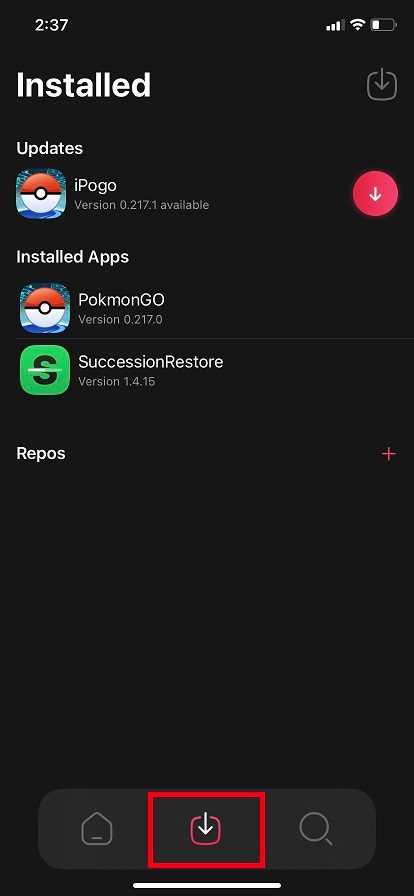
Scarlet runs on the device itself, with its own list of installed apps.
Installing an IPA through Scarlet
- With Scarlet open, browse the built-in app list, or tap the download/import option to add your own file.
- To use your own IPA, tap Import IPA and pick the file from Files or wherever you saved it.
- Confirm the install and let Scarlet sign the app. This can take anywhere from a few seconds to a couple of minutes.
- When it’s done, the app lands on your Home Screen. If iOS shows the “Untrusted Developer” message on first launch, follow the trust steps below.
Tips and troubleshooting
”Untrusted Developer” when you open an app
This is normal on the first launch of anything signed outside the App Store. Go to Settings > General > VPN & Device Management, find the certificate under Enterprise App, tap it, and tap Trust. The app should open right after. If you don’t see the entry, make sure the install actually finished, and that you’re trusting the current profile rather than a stale one left over from a previous reinstall.
The app stops opening after a while
Personal free certificates expire in seven days, and people often assume Scarlet works the same way. It doesn’t, exactly. Scarlet uses an enterprise certificate, which sidesteps the seven-day limit, and it can re-sign apps on-device to keep them alive. The catch is revocation, covered next.
”Cannot Verify App” or apps suddenly crash on launch
That’s a revoked certificate. Apple periodically kills the enterprise certificates these installers rely on. A fresh certificate can last weeks, but it can also go down much faster when Apple moves on a popular one. When it happens, the Scarlet app itself may refuse to open, and apps you installed through it stop working at the same time. The usual fixes: reinstall Scarlet to pick up a new certificate, or re-sign the affected app from inside Scarlet once a working certificate is back. Some users also block Apple’s certificate-check servers with an anti-revoke DNS profile, though that’s a stopgap and can be flaky.
Want something that won’t break this way?
If the revocation cycle wears you down, two siblings are worth a look. TrollStore installs apps permanently with no certificate to revoke, but only on a specific window of older iOS versions. SideStore refreshes its own certificate over Wi-Fi and is far more stable for apps you want to keep long-term.
Removing Scarlet and cleaning up
Getting rid of Scarlet takes two steps, not one. Delete the app from the Home Screen the usual way, by holding its icon and choosing Remove App. That clears the app, but the enterprise profile it relied on stays behind. To remove that, open Settings > General > VPN & Device Management, tap the enterprise profile tied to Scarlet under the Enterprise App heading, and choose to delete it. Anything you installed through Scarlet should be deleted the same way as the app itself.
FAQ
Do I need a computer to install IPA with Scarlet?
No computer comes into it at any point. You download Scarlet in Safari, trust the profile in Settings, and sign IPAs on the device itself, which is the whole appeal compared to desktop tools.
Why does Scarlet keep saying “Cannot Verify App” out of nowhere?
That message almost always means Apple revoked the certificate Scarlet was using. It’s not something you did wrong. Reinstall Scarlet for a fresh certificate and re-sign the broken app, and keep in mind it can happen again on Apple’s timeline, not yours.
Is Scarlet free?
The installer itself costs nothing to download and use, with no Apple ID purchase or subscription to run it. Any cost would come from the apps you choose to install, which you should obtain legally.
Scarlet is the grab-and-go choice when you want apps on your phone in a few minutes with nothing plugged in. Go in expecting the occasional revocation, keep a second method ready for the apps you can’t afford to lose, and you’ll get plenty of mileage out of it between Apple’s crackdowns.